Step-by-step: Connect (or reconnect) your LinkedIn
Step 1: Open settings and click “Connect LinkedIn”
Go to your connection settings by clicking here, then click the connect button to open a secure login page. No Chrome extension needed — just a clean login form.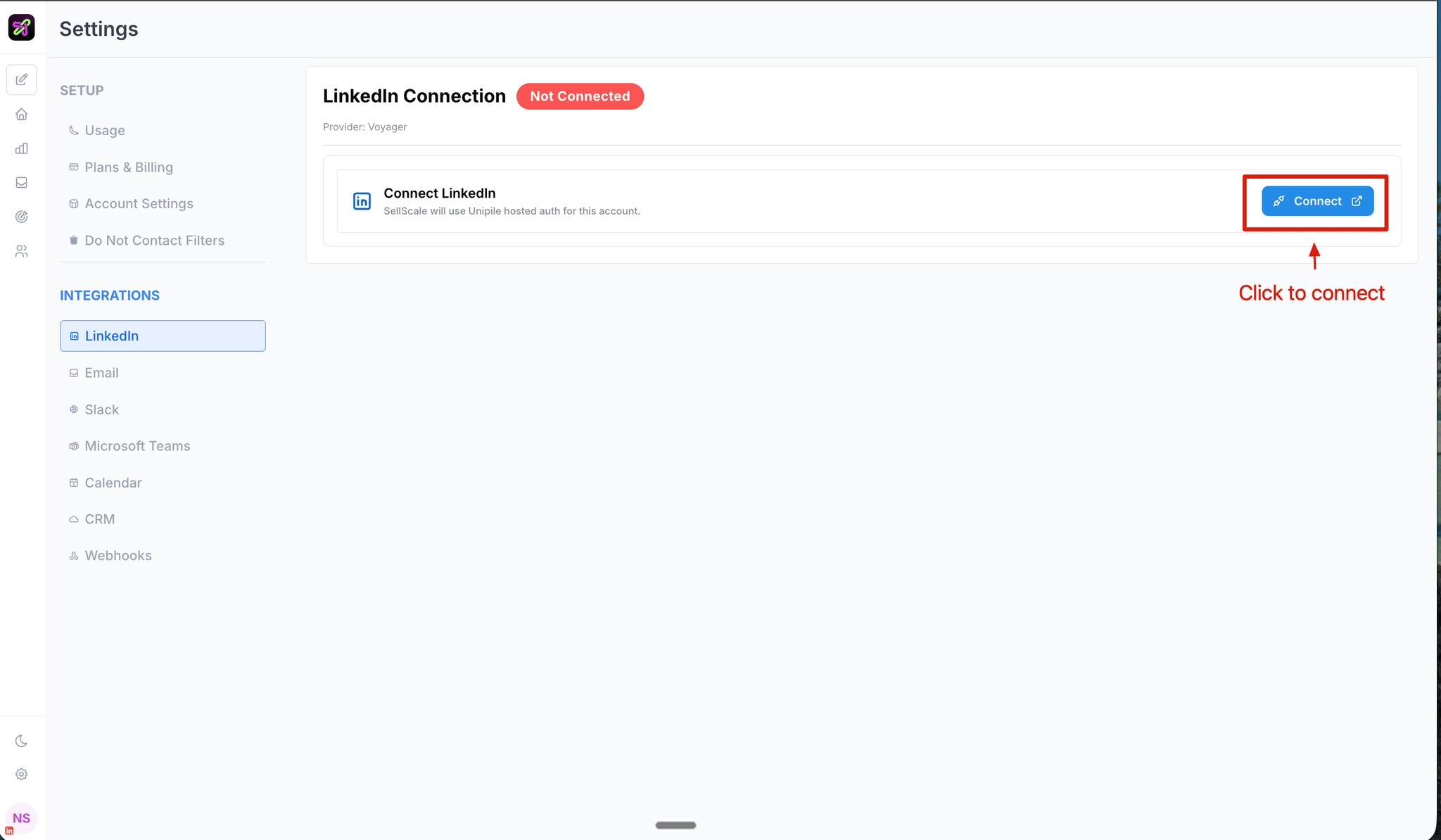
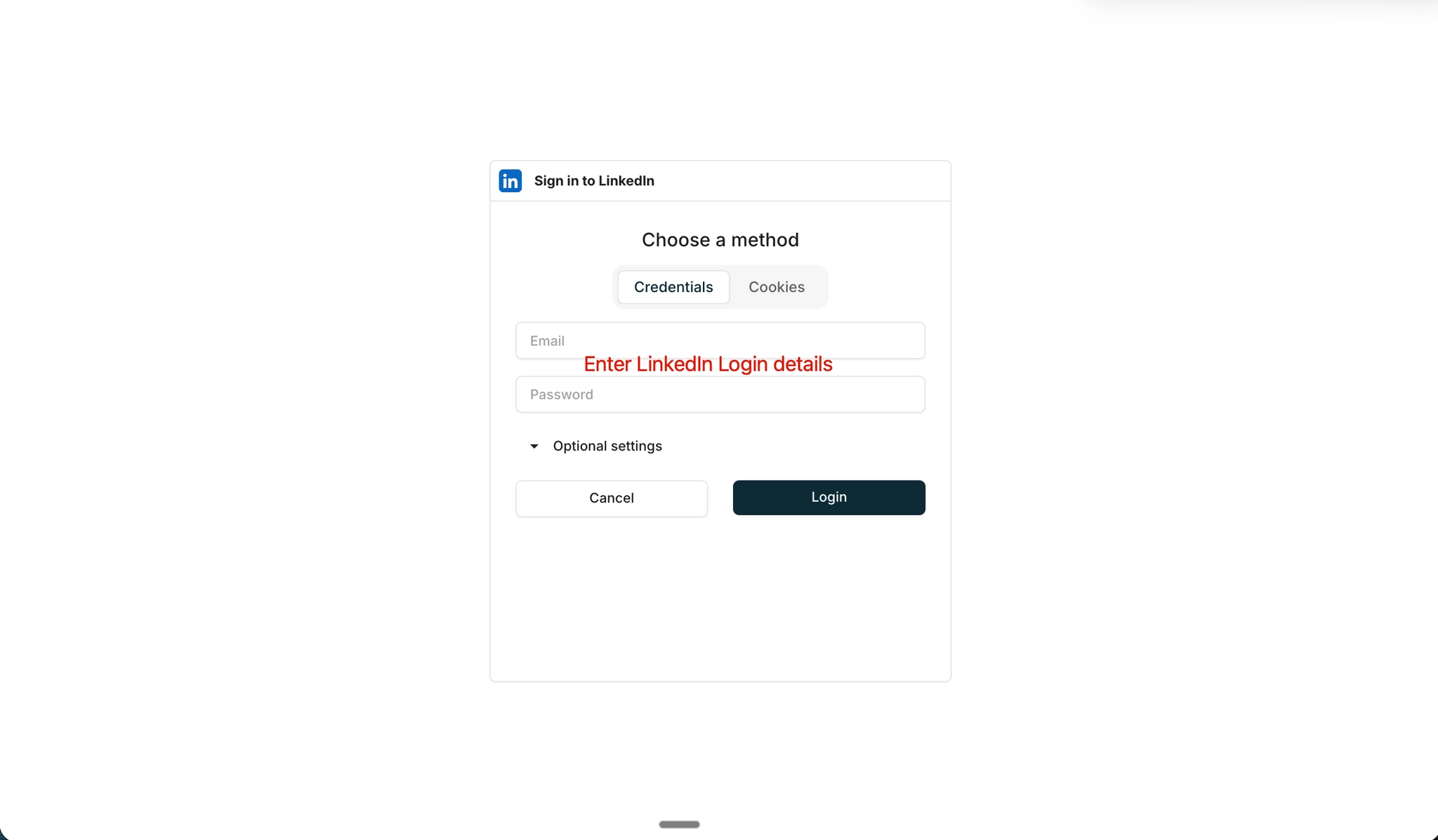
Step 2: Enter your LinkedIn credentials + 2FA
Log in with your LinkedIn email and password. If you have 2FA enabled, you’ll be asked to verify. There are two options:- Approve the notification sent to your LinkedIn mobile app.
- Click “Try another way” to receive a 6-digit code via email instead.
After logging in, it may take a few seconds for the page to load. Just hang tight.
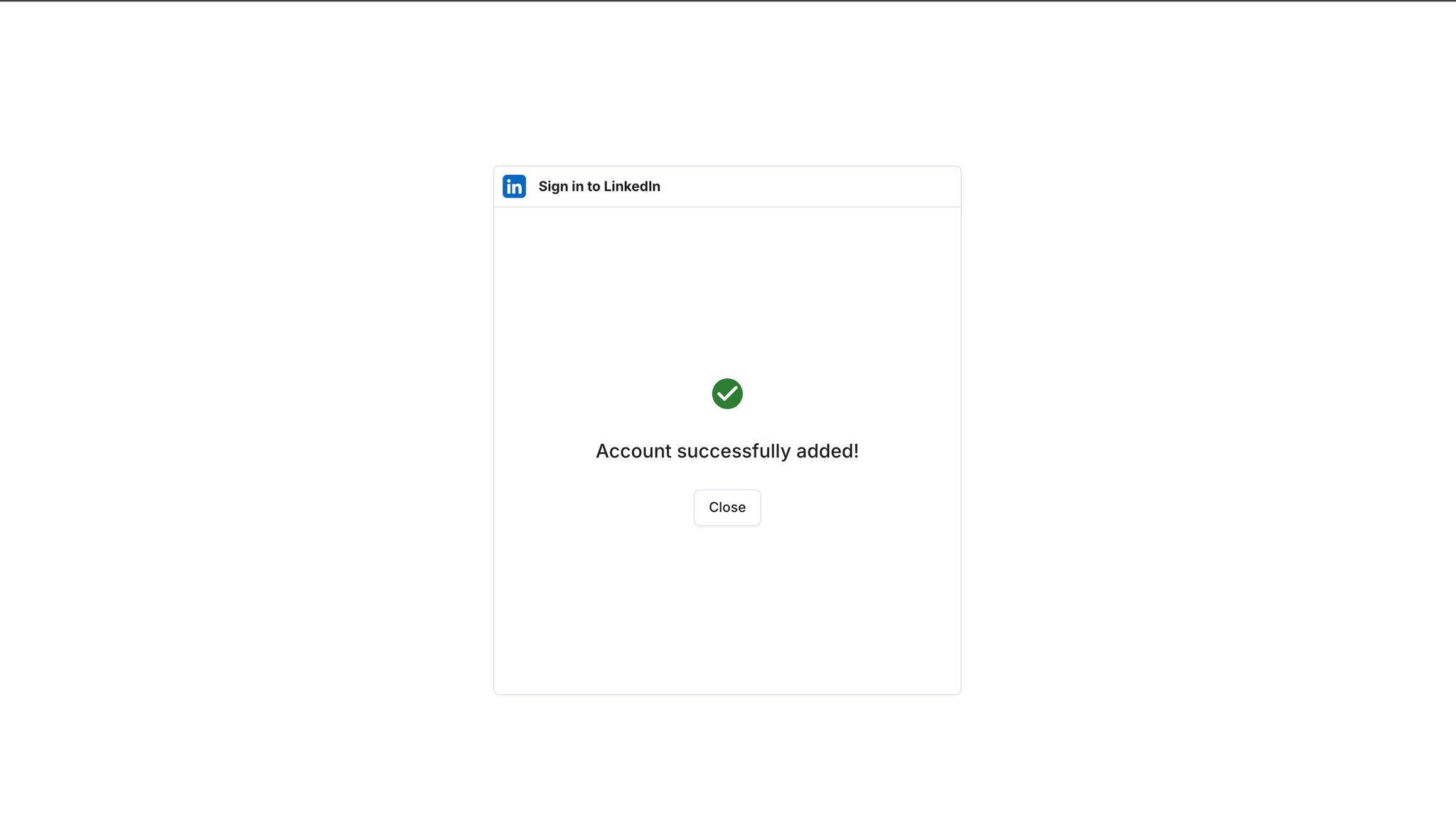
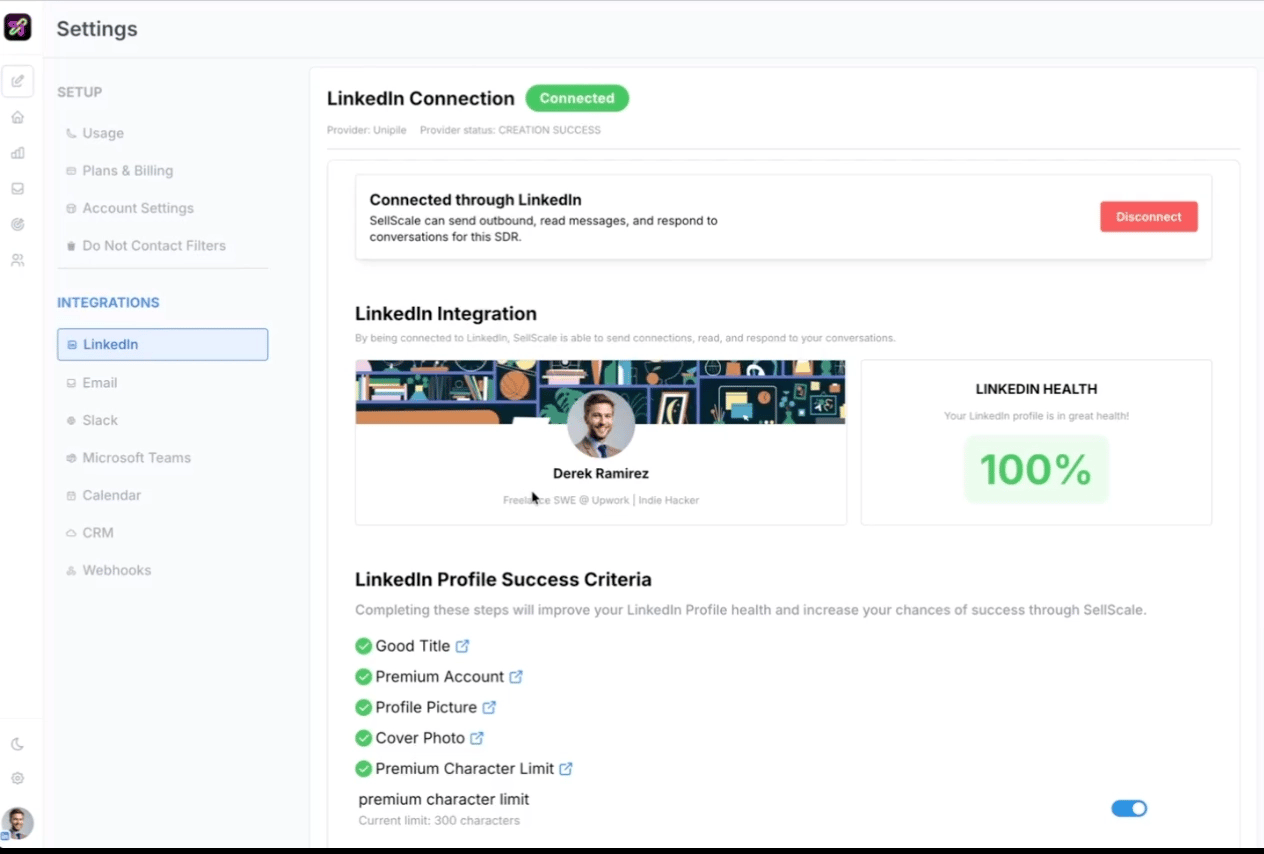
Step 3: Connection confirmed
Once logged in, you’ll land back in Selix. You should see:- A health score for your connection
- Your LinkedIn profile image pulled in
- Your SDR information updated automatically
FAQ
Will I lose my message history? No. Your existing messages and conversations are preserved. What if I was already connected? You’ll need to reconnect once using the flow above. It takes about 60 seconds. What if I get disconnected later? Selix handles reconnection automatically. If you do see a disconnection, just repeat the steps above. Do I need to uninstall anything? No, but you can uninstall the old Chrome extension since it’s no longer needed.Questions? Reach out to the SellScale team and we’ll help you get connected.