1
Enable IMAP at your provider
In your email provider’s settings, turn on IMAP access for the mailbox. Some providers also require an app password instead of your normal login password — generate one if prompted.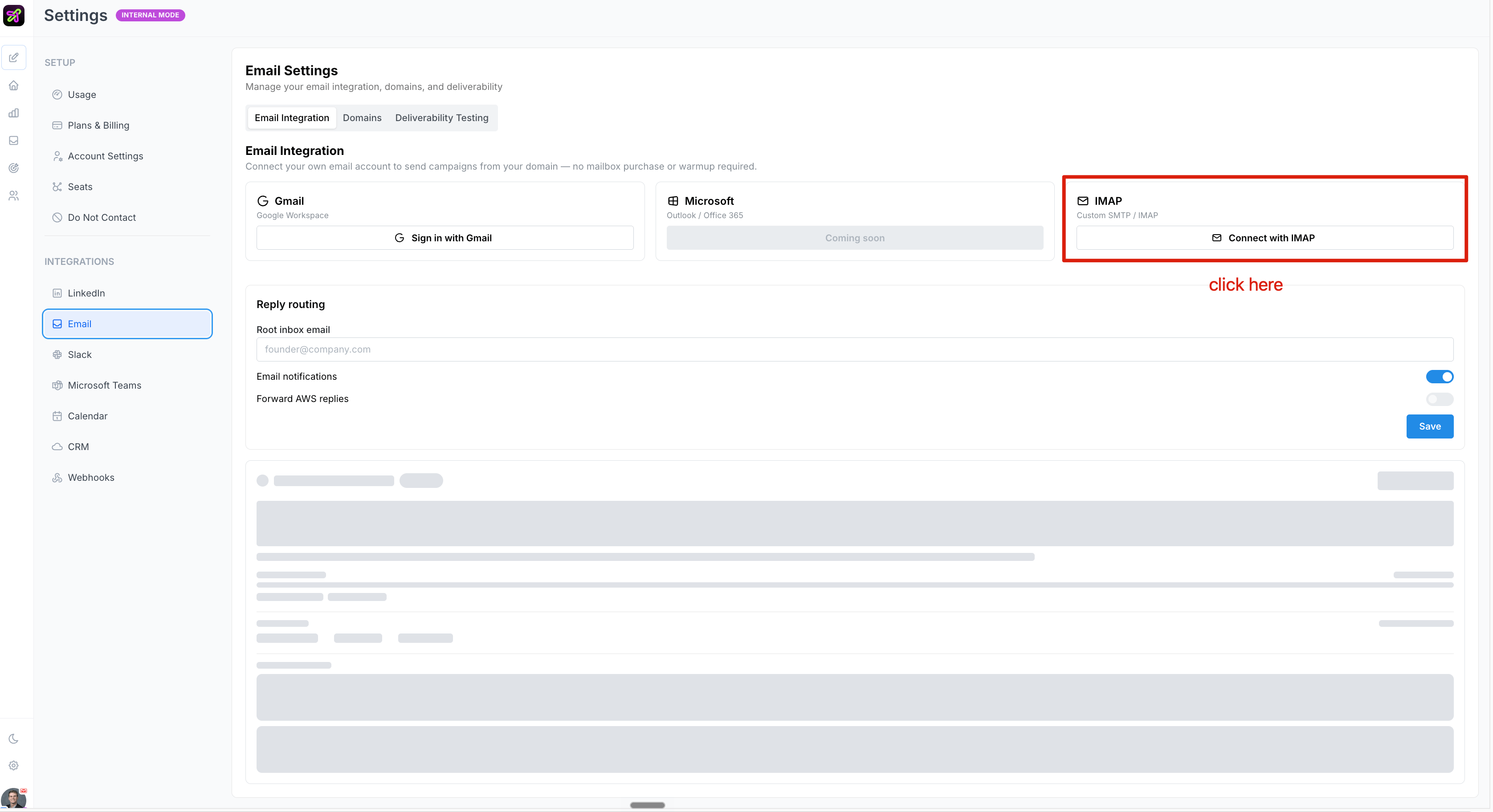
2
Gather your credentials
Have these ready before you start:
- Email address and password (or app password)
- Incoming (IMAP) server host and port — e.g.
imap.gmail.com, port993 - Outgoing (SMTP) server host and port — e.g.
smtp.gmail.com, port587
3
Open Add Mailboxes → Custom mailbox connection
In your Selix Email settings, click Add Mailboxes, then choose Custom mailbox connection.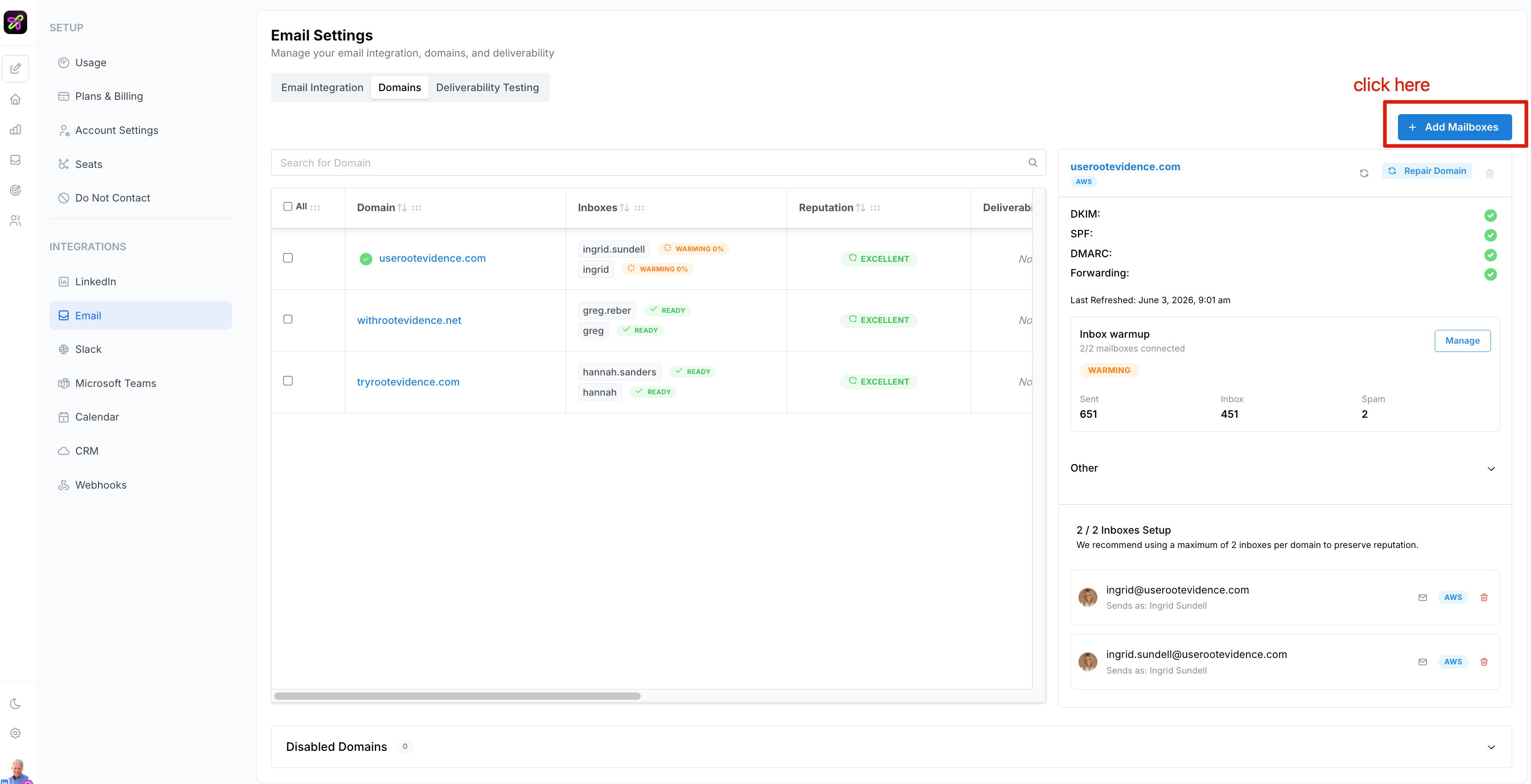
4
Enter your credentials and test
Fill in the IMAP and SMTP details you gathered, then click Test. A successful connection shows Test successful.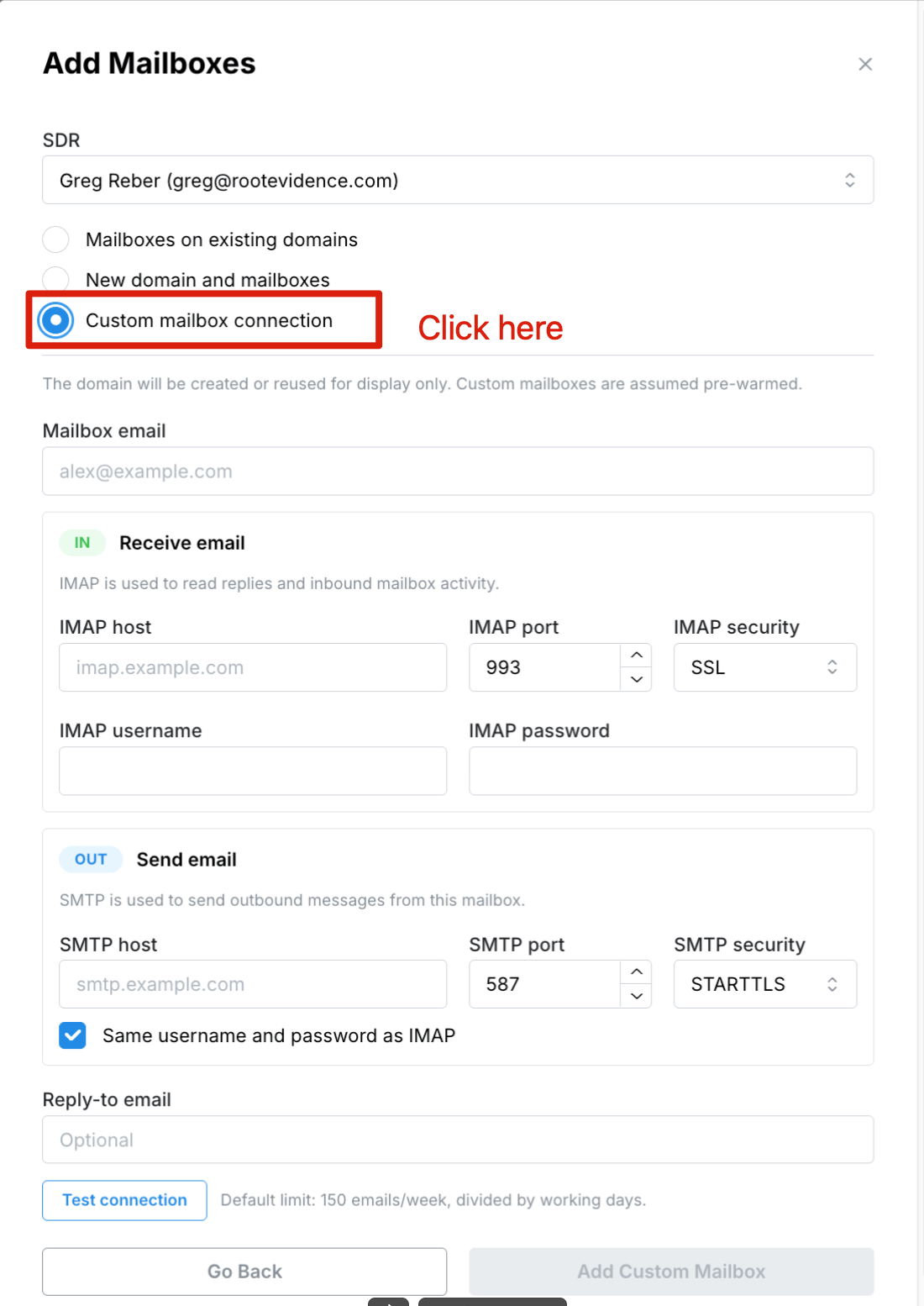
5
Confirm it's connected
Your connected mailbox now appears under Domains in your email settings — that’s how you know it’s live.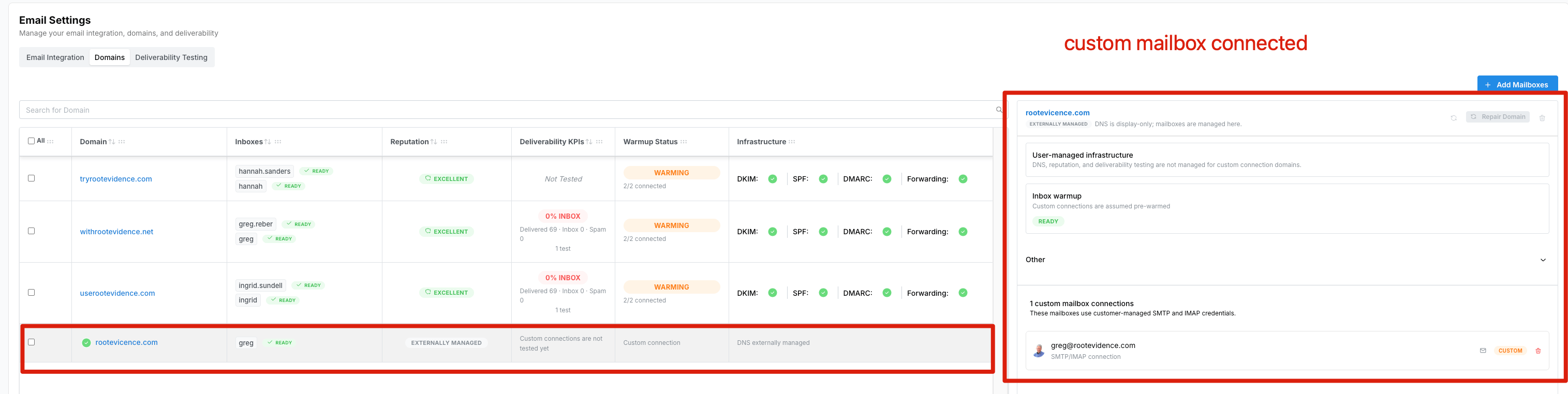
Need a hand? The SellScale team can walk you through the IMAP setup on a quick call.