> ## Documentation Index
> Fetch the complete documentation index at: https://docs.selix.ai/llms.txt
> Use this file to discover all available pages before exploring further.
# Export LinkedIn Connections
> Download your LinkedIn connections as a CSV so Selix can work from your network.
You can send Selix your LinkedIn connections as a CSV — no account access required. Selix uses it to:
* **Map warm intros** — surface your (or your founders') first-degree connections so you can prioritize warm introductions.
* **Re-engage your network** — build a campaign to the connections you've already made on LinkedIn.
## Export your connections
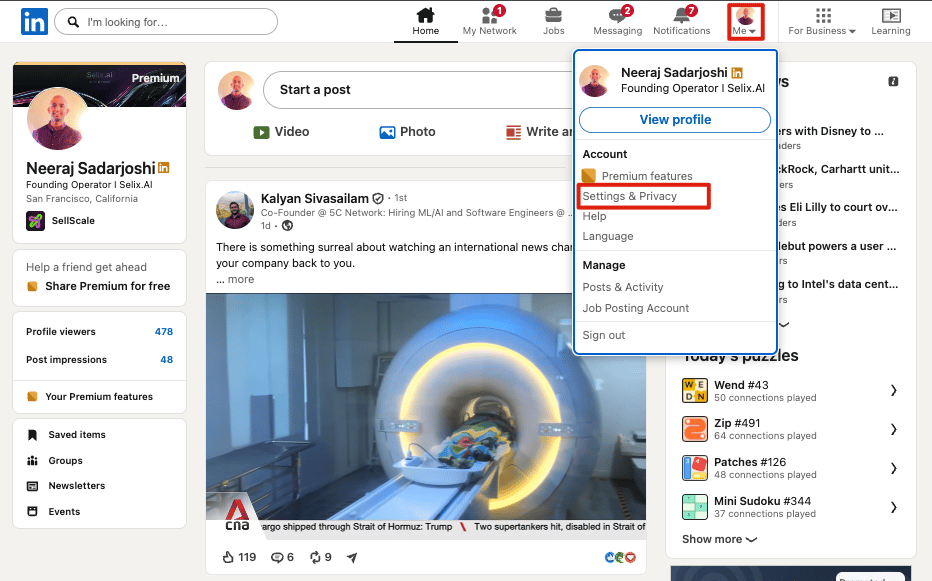
Click the **Me** icon at the top right of LinkedIn, then select **Settings & Privacy**.
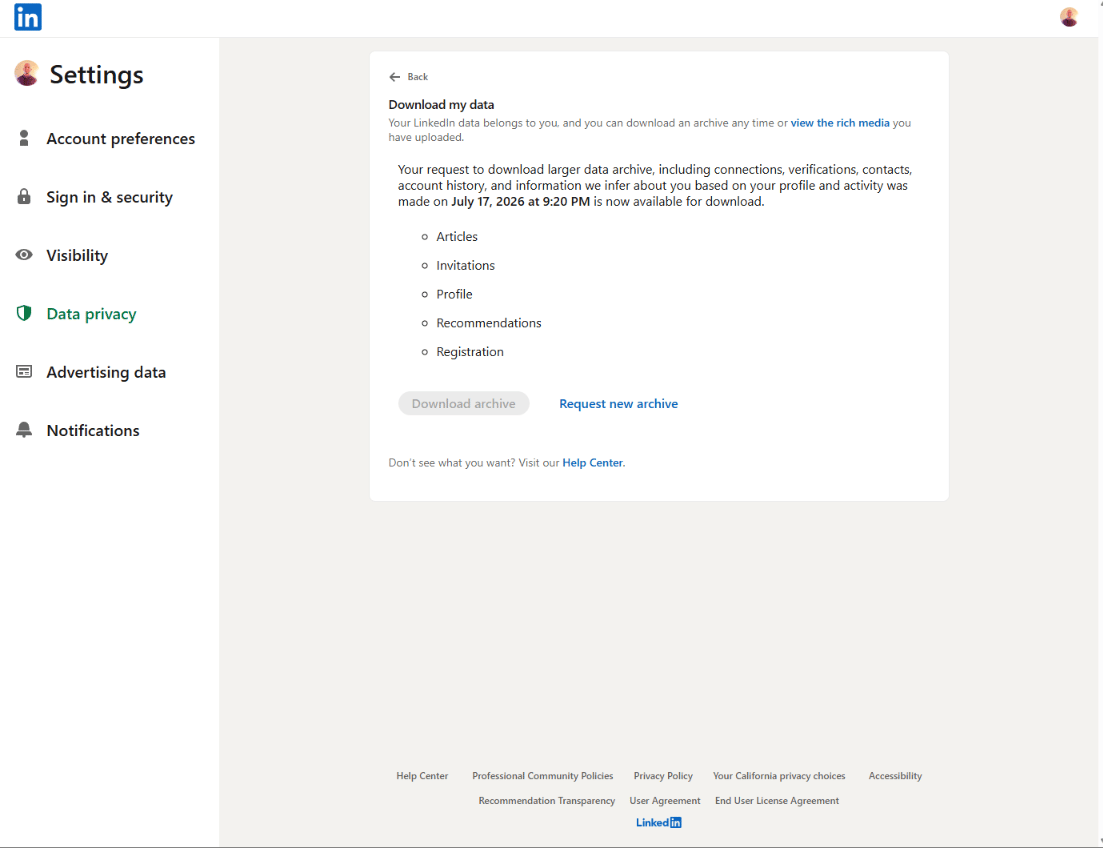
 In the left pane, click **Data privacy**.
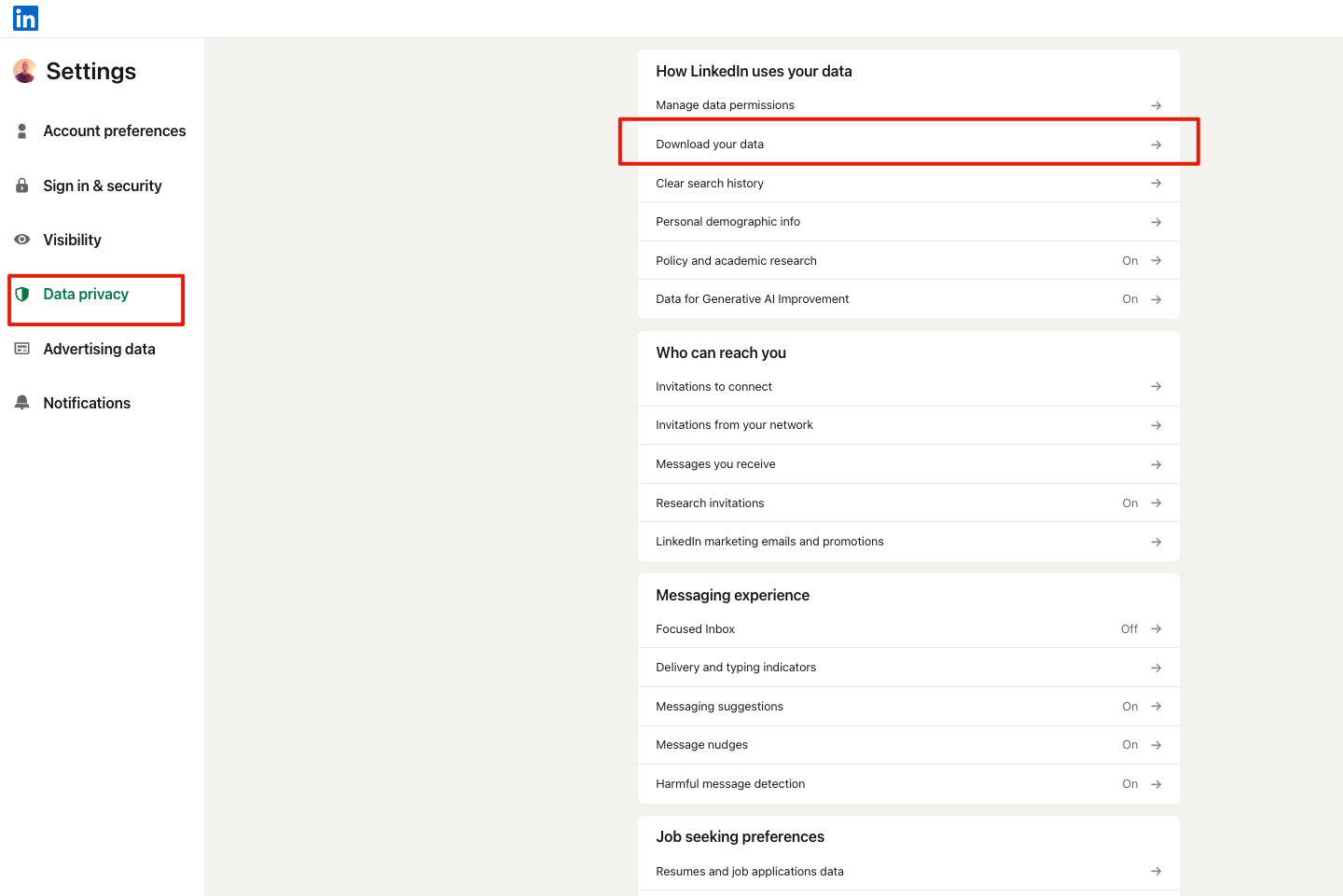 Under **How LinkedIn uses your data**, click **Get a copy of your data** (Download your data).
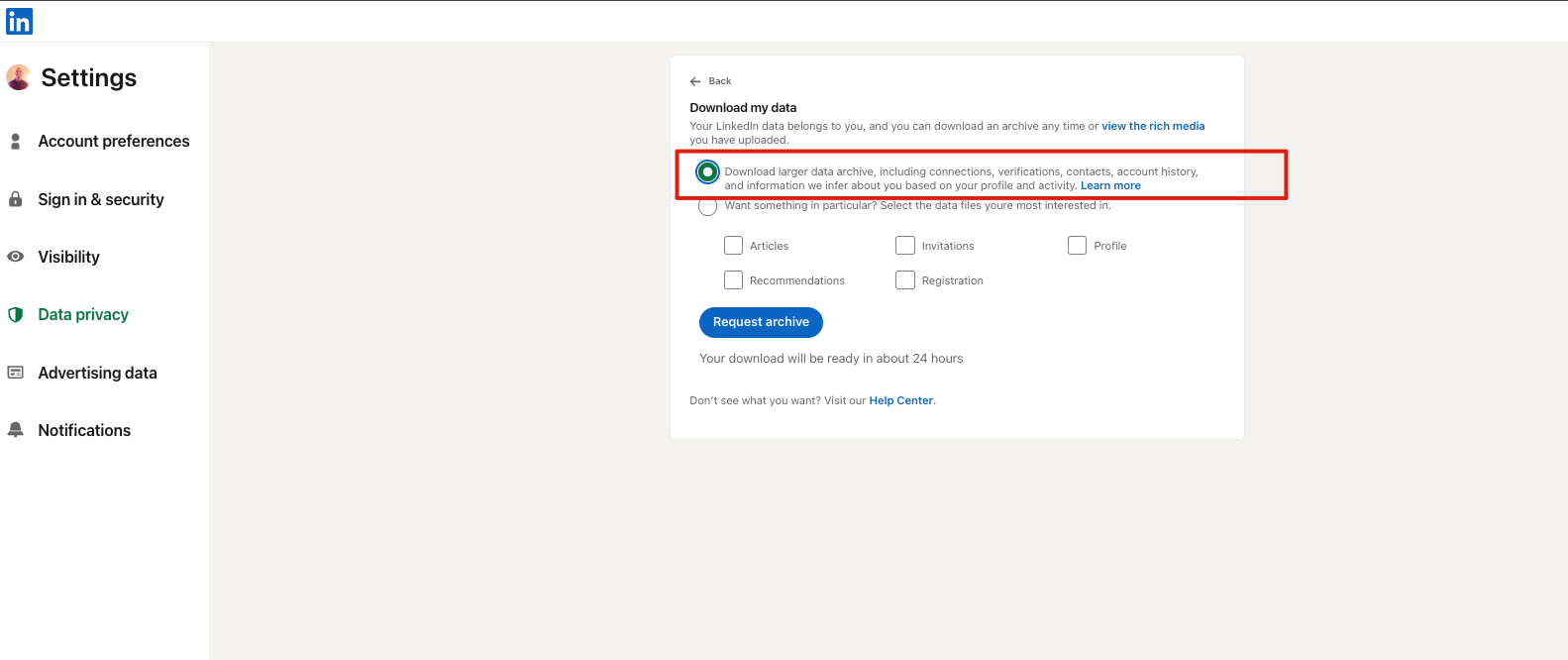
Select **Download larger data archive** — it includes your connections (names, companies, and titles) — then click **Request archive**.
Under **How LinkedIn uses your data**, click **Get a copy of your data** (Download your data).
Select **Download larger data archive** — it includes your connections (names, companies, and titles) — then click **Request archive**.
 LinkedIn emails a download link to your primary address. A first file often arrives quickly; the full archive can take a few hours, and occasionally up to a day.
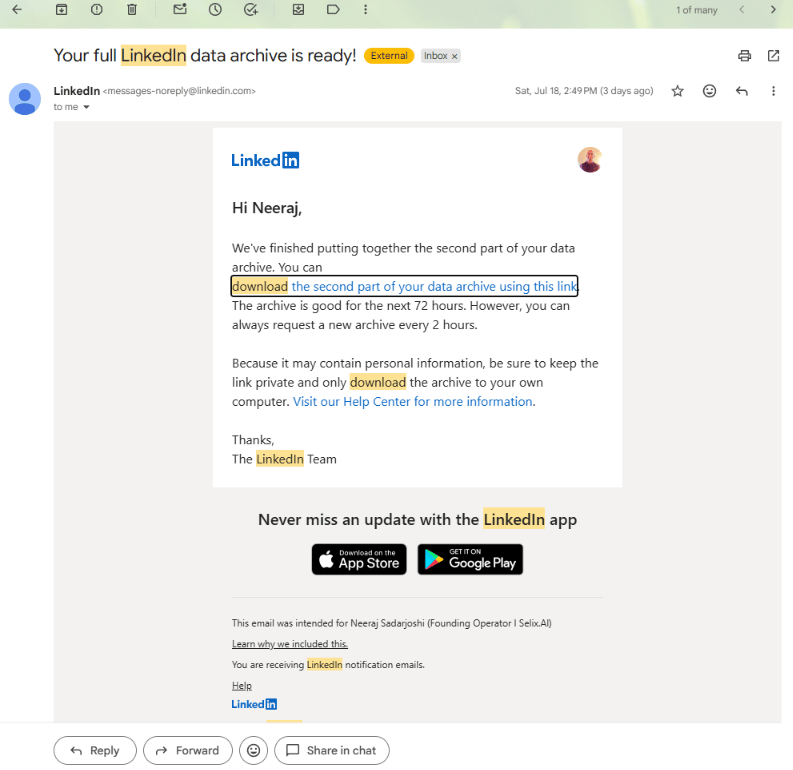 Open the download link, grab the **Connections.csv**, and send it to your Selix team. We ingest it and take it from there — no account access needed.
 Some connections' email addresses may be blank — LinkedIn only includes an email if that person allows their connections to see it. That's fine; Selix works from names, companies, and titles.
For LinkedIn's official walkthrough, see [Export connections from LinkedIn](https://www.linkedin.com/help/linkedin/answer/a566336/export-connections-from-linkedin).
Some connections' email addresses may be blank — LinkedIn only includes an email if that person allows their connections to see it. That's fine; Selix works from names, companies, and titles.
For LinkedIn's official walkthrough, see [Export connections from LinkedIn](https://www.linkedin.com/help/linkedin/answer/a566336/export-connections-from-linkedin).