> ## Documentation Index
> Fetch the complete documentation index at: https://docs.selix.ai/llms.txt
> Use this file to discover all available pages before exploring further.
# Connect LinkedIn
> Connect your LinkedIn account so Selix can send connection requests and messages.
Connect your LinkedIn account so Selix can add connection requests and direct messages as steps in your outbound sequences.
## Step-by-step: Connect (or reconnect) your LinkedIn
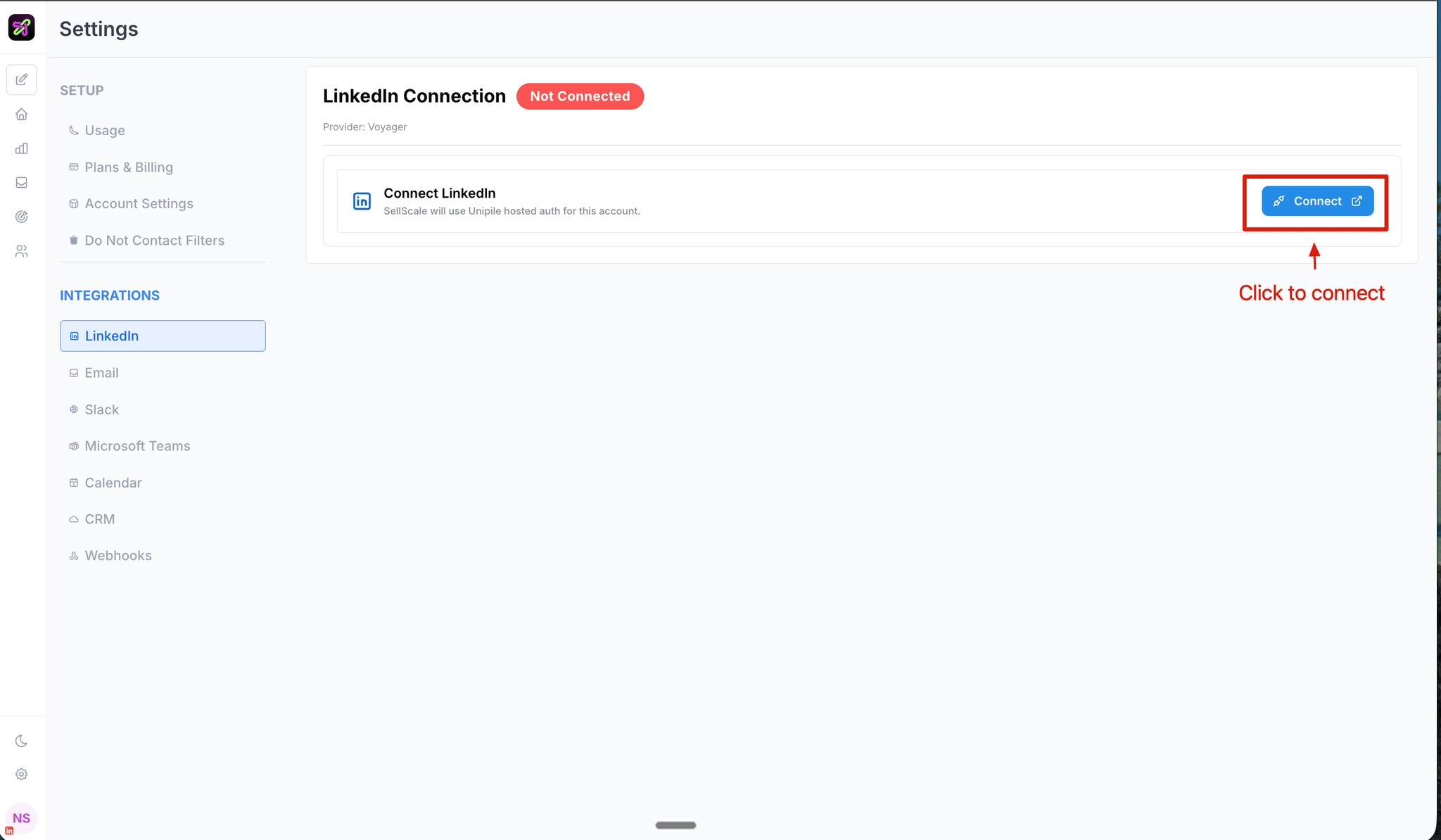
### Step 1: Open settings and click "Connect LinkedIn"
Go to your connection settings by clicking [here](https://app.sellscale.com/settings/linkedin), then click the connect button to open a secure login page. No Chrome extension needed — just a clean login form.
 ### Step 2: Enter your LinkedIn credentials + 2FA
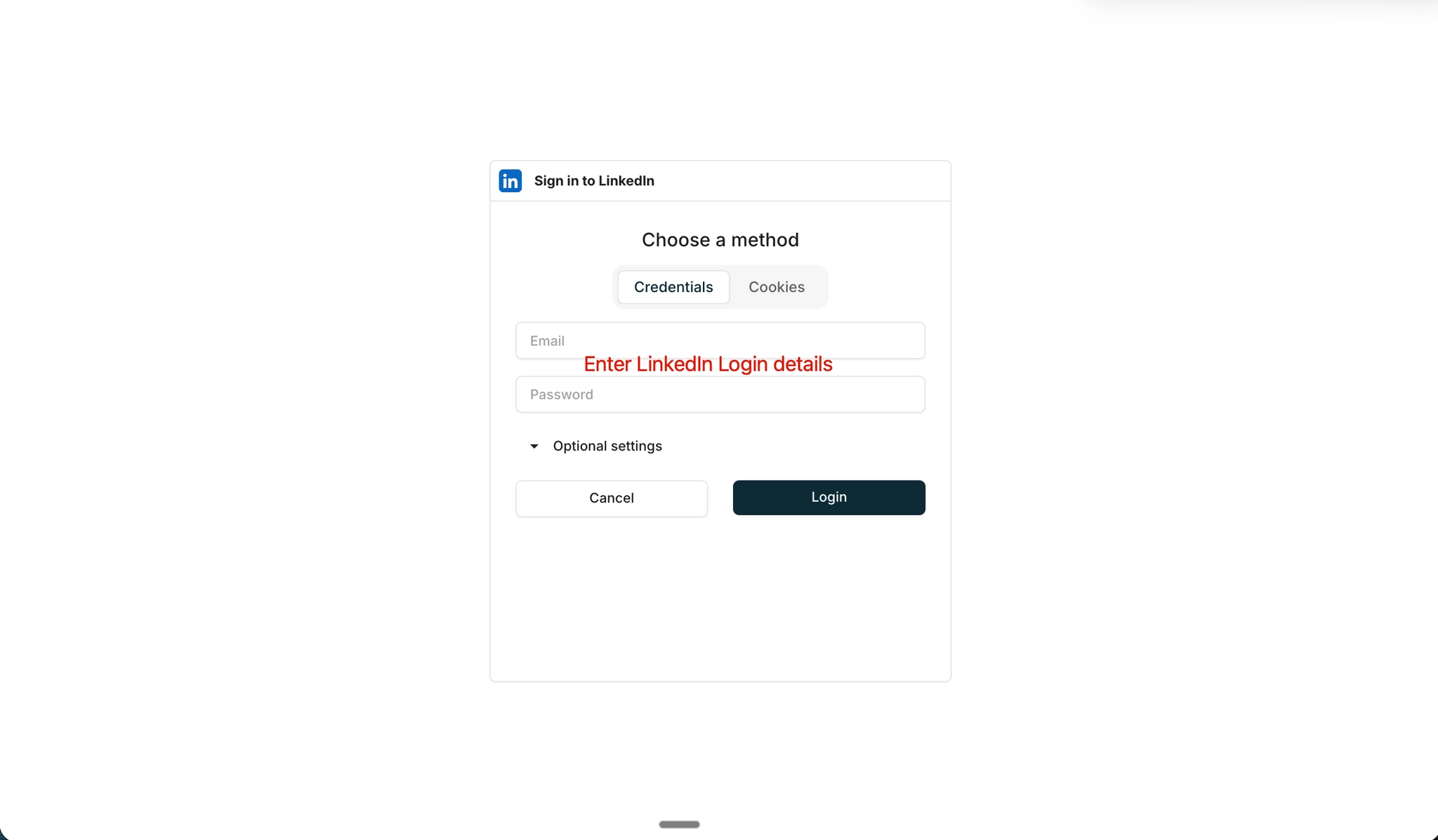
Log in with your LinkedIn email and password.
If you have 2FA enabled, you'll be asked to verify. There are two options:
1. **Approve the notification** sent to your LinkedIn mobile app.
2. **Click "Try another way"** to receive a 6-digit code via email instead.
This is a one-time setup — Selix keeps your session alive from here.
After logging in, it may take a few seconds for the page to load. Just hang tight.
### Step 2: Enter your LinkedIn credentials + 2FA
Log in with your LinkedIn email and password.
If you have 2FA enabled, you'll be asked to verify. There are two options:
1. **Approve the notification** sent to your LinkedIn mobile app.
2. **Click "Try another way"** to receive a 6-digit code via email instead.
This is a one-time setup — Selix keeps your session alive from here.
After logging in, it may take a few seconds for the page to load. Just hang tight.
 ### Step 3: Connection confirmed
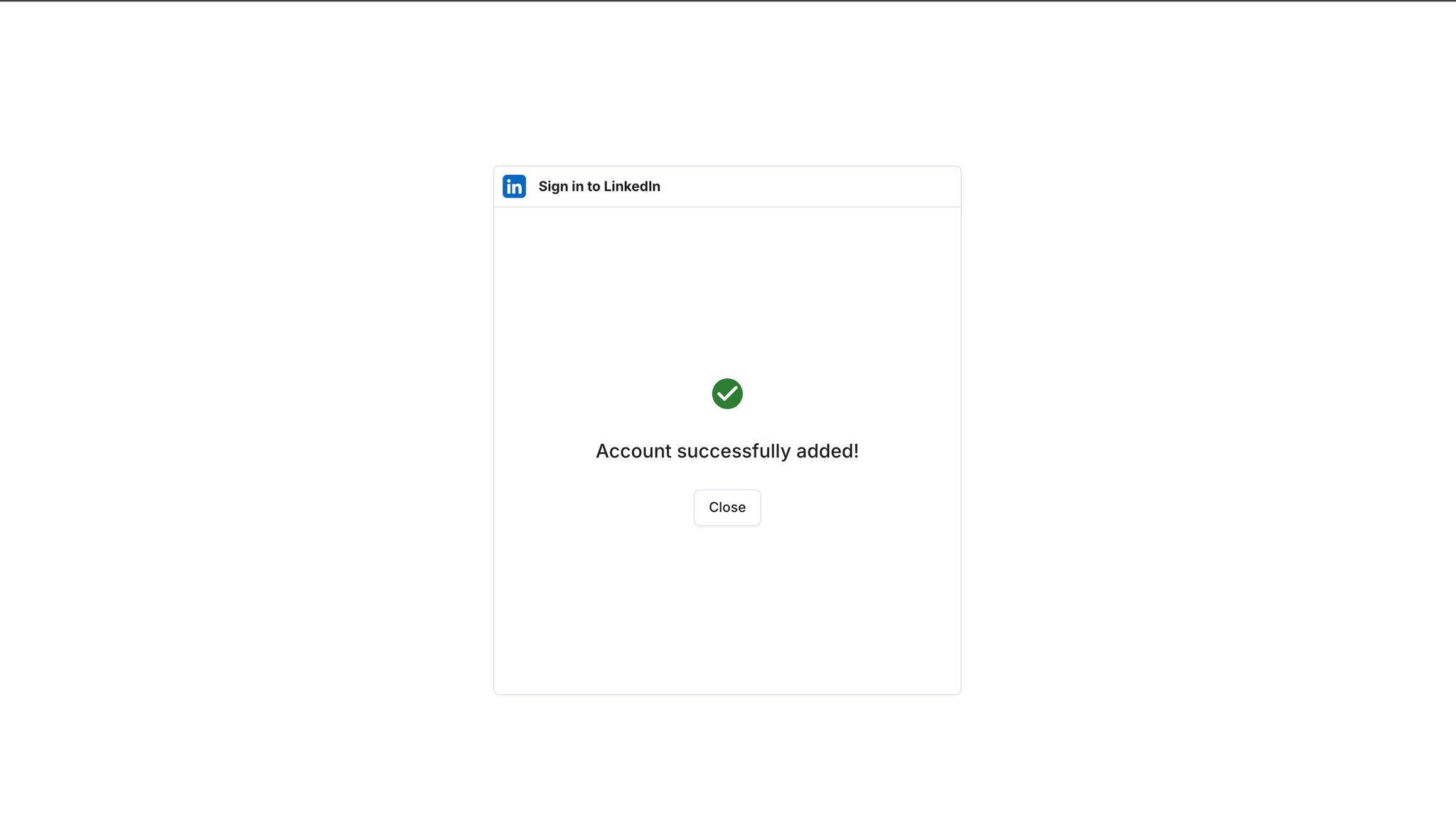
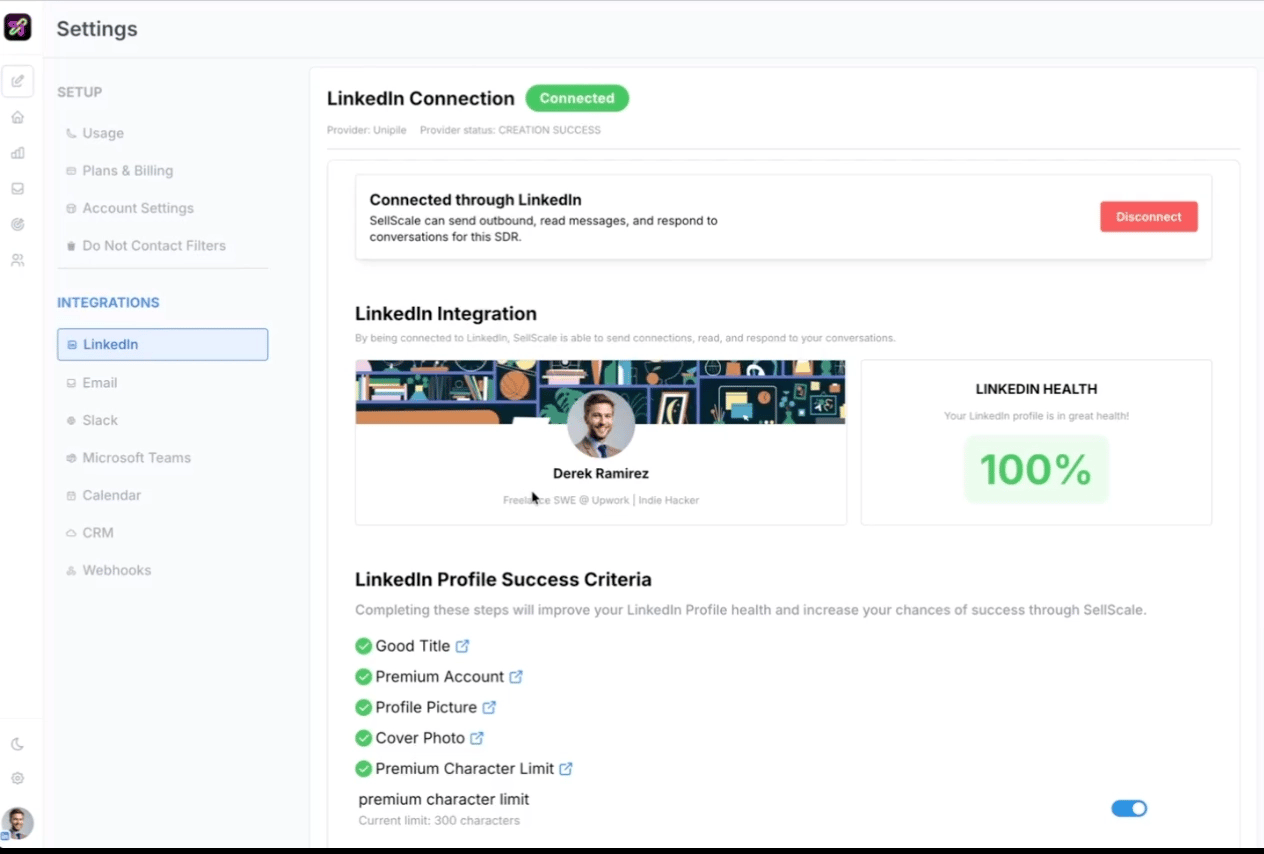
Once logged in, you'll land back in Selix. You should see:
* A **health score** for your connection
* Your **LinkedIn profile image** pulled in
* Your **SDR information** updated automatically
If your profile image or info doesn't load right away, try refreshing the page.
### Step 3: Connection confirmed
Once logged in, you'll land back in Selix. You should see:
* A **health score** for your connection
* Your **LinkedIn profile image** pulled in
* Your **SDR information** updated automatically
If your profile image or info doesn't load right away, try refreshing the page.
 ## FAQ
**Will I lose my message history?**
No. Your existing messages and conversations are preserved.
**What if I was already connected?**
You'll need to reconnect once using the flow above. It takes about 60 seconds.
**What if I get disconnected later?**
Selix handles reconnection automatically. If you do see a disconnection, just repeat the steps above.
**Do I need to uninstall anything?**
No, but you can uninstall the old Chrome extension since it's no longer needed.
***
Questions? Reach out to the SellScale team and we'll help you get connected.
## FAQ
**Will I lose my message history?**
No. Your existing messages and conversations are preserved.
**What if I was already connected?**
You'll need to reconnect once using the flow above. It takes about 60 seconds.
**What if I get disconnected later?**
Selix handles reconnection automatically. If you do see a disconnection, just repeat the steps above.
**Do I need to uninstall anything?**
No, but you can uninstall the old Chrome extension since it's no longer needed.
***
Questions? Reach out to the SellScale team and we'll help you get connected.