> ## Documentation Index
> Fetch the complete documentation index at: https://docs.selix.ai/llms.txt
> Use this file to discover all available pages before exploring further.
# Connect a custom mailbox (IMAP)
> Connect any mailbox over IMAP/SMTP so campaigns send from your own address.
Not on Google Workspace? You can connect almost any mailbox — a custom domain, a non-Google provider, or a shared inbox — over IMAP.
**Turn IMAP on at your provider first.** This is the most common reason a connection fails. On Google Workspace this is an admin setting — see Google's guide, [Set up Gmail with a third-party email client](https://knowledge.workspace.google.com/admin/sync/set-up-gmail-with-a-third-party-email-client). Other providers have an equivalent "enable IMAP" toggle in their mail settings.
In your email provider's settings, turn on **IMAP access** for the mailbox. Some providers also require an **app password** instead of your normal login password — generate one if prompted.
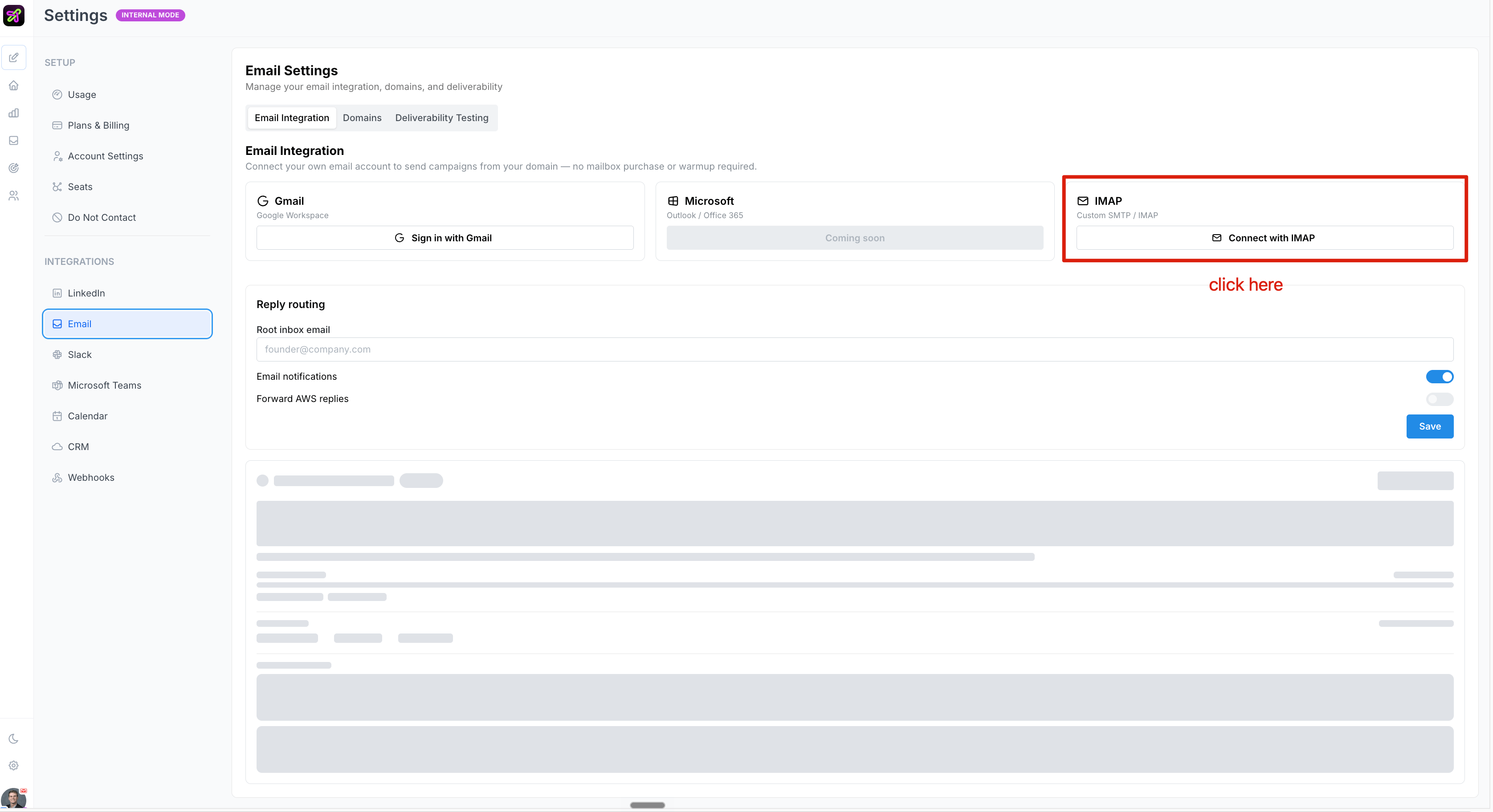 Have these ready before you start:
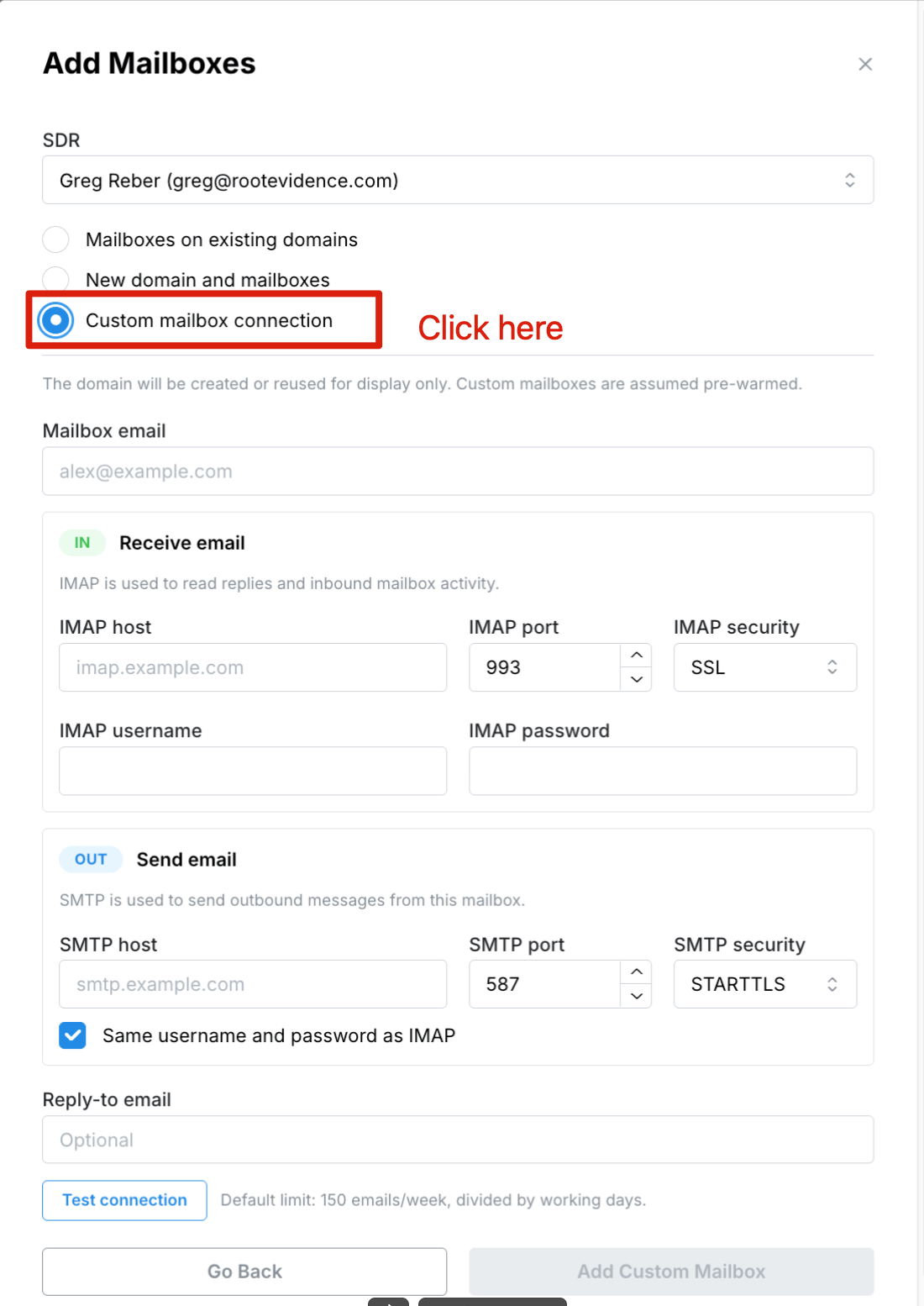
* **Email address** and **password** (or app password)
* **Incoming (IMAP)** server host and port — e.g. `imap.gmail.com`, port `993`
* **Outgoing (SMTP)** server host and port — e.g. `smtp.gmail.com`, port `587`
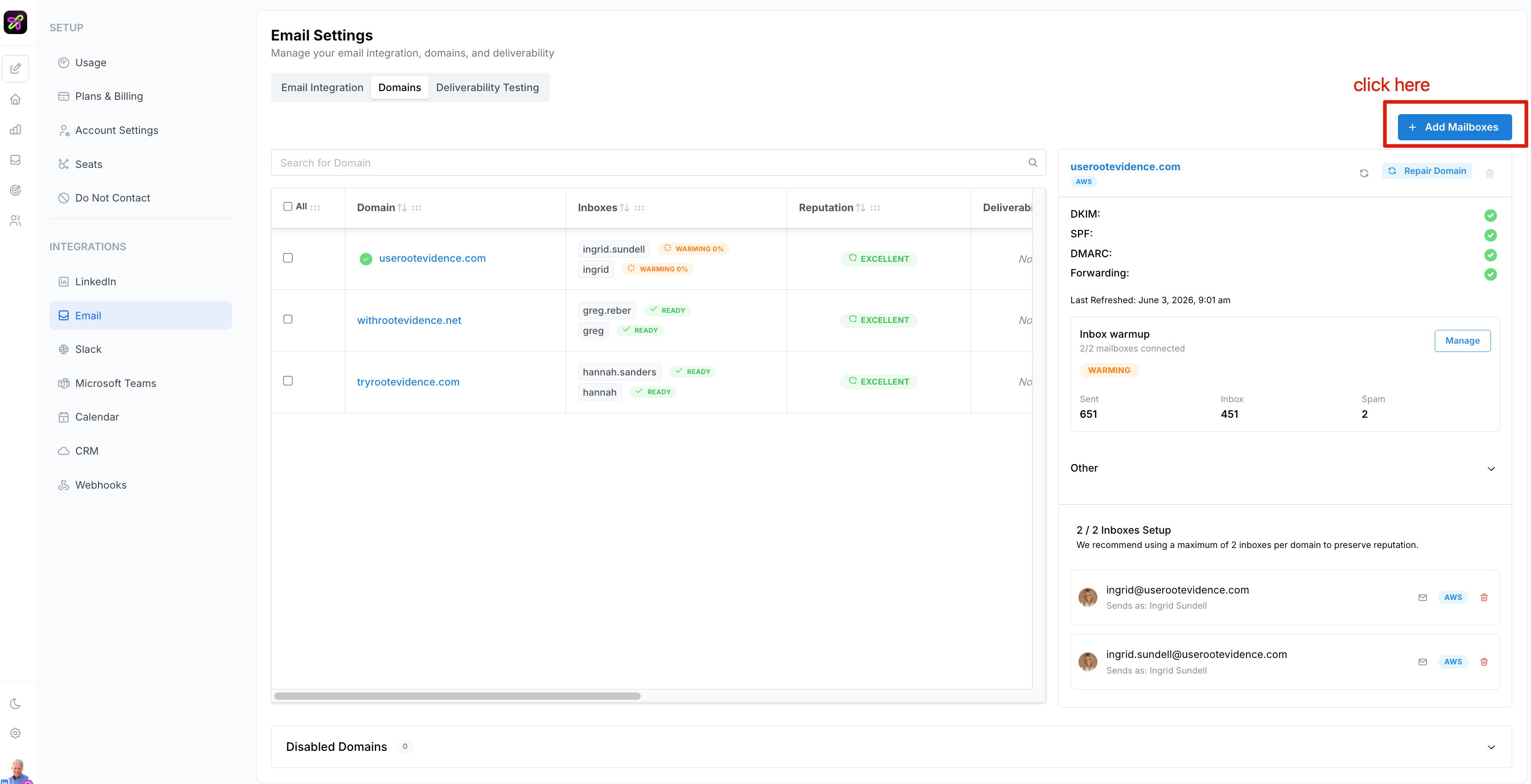
In your Selix [Email settings](https://app.sellscale.com/settings/email), click **Add Mailboxes**, then choose **Custom mailbox connection**.
Have these ready before you start:
* **Email address** and **password** (or app password)
* **Incoming (IMAP)** server host and port — e.g. `imap.gmail.com`, port `993`
* **Outgoing (SMTP)** server host and port — e.g. `smtp.gmail.com`, port `587`
In your Selix [Email settings](https://app.sellscale.com/settings/email), click **Add Mailboxes**, then choose **Custom mailbox connection**.
 Fill in the IMAP and SMTP details you gathered, then click **Test**. A successful connection shows **Test successful**.
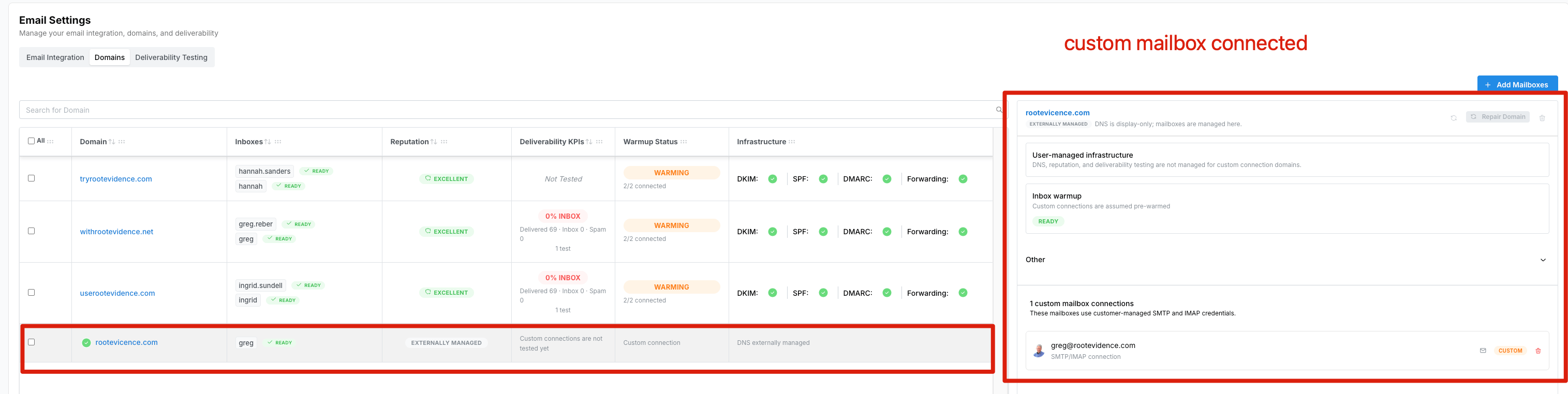
 Your connected mailbox now appears under **Domains** in your email settings — that's how you know it's live.
 Need a hand? The SellScale team can walk you through the IMAP setup on a quick call.