> ## Documentation Index
> Fetch the complete documentation index at: https://docs.selix.ai/llms.txt
> Use this file to discover all available pages before exploring further.

# Connect Gmail

> Connect your Gmail (Google Workspace) account so campaigns send from your own address.

Connect your Google Workspace account so Selix can send campaigns from **your own address** — replies land in your inbox, with no mailbox purchase or warmup required. The whole thing takes about a minute.

<Info>
  You'll need a **Google Workspace** account (a company address like `you@company.com`), not a personal `@gmail.com` address. You're granting Selix permission to **read, compose, and send** email on your behalf so it can run campaigns from your inbox.
</Info>

<Steps>
  <Step title="Open your Email settings">
    Go to [app.sellscale.com/settings/email](https://app.sellscale.com/settings/email).
  </Step>

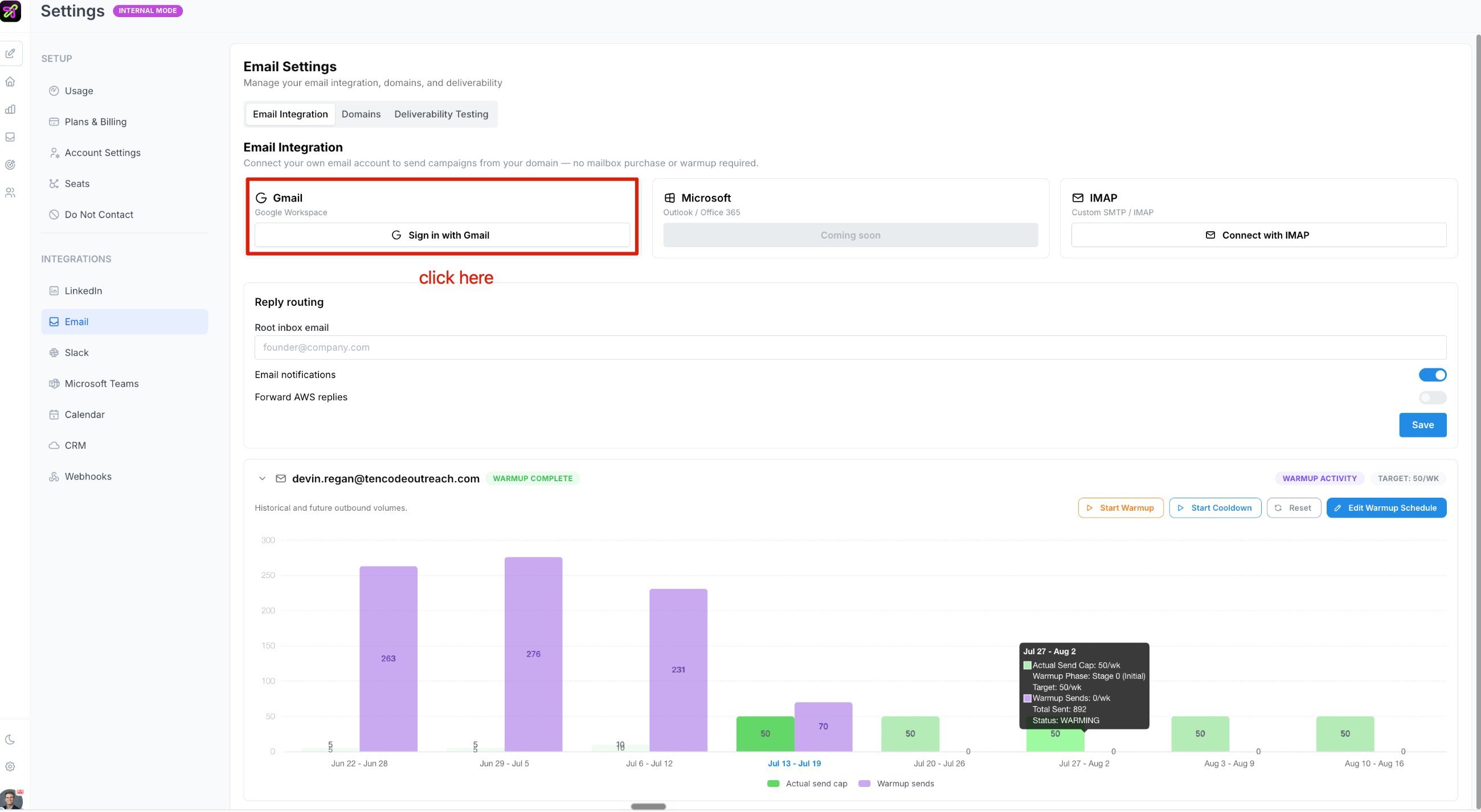
  <Step title="Click Sign in with Gmail">
    In the **Email Integration** section, find the **Gmail (Google Workspace)** card and click **Sign in with Gmail**.
    <Frame>
      <img src="https://mintcdn.com/selix/DVkCPfkWB1Ia9SpW/images/image-11.png?fit=max&auto=format&n=DVkCPfkWB1Ia9SpW&q=85&s=22eb37a327e68f54bb9f47ac1aa1ba8a" alt="Email Settings page with the Sign in with Gmail button highlighted" width="2600" height="1426" data-path="images/image-11.png" />
    </Frame>
  </Step>

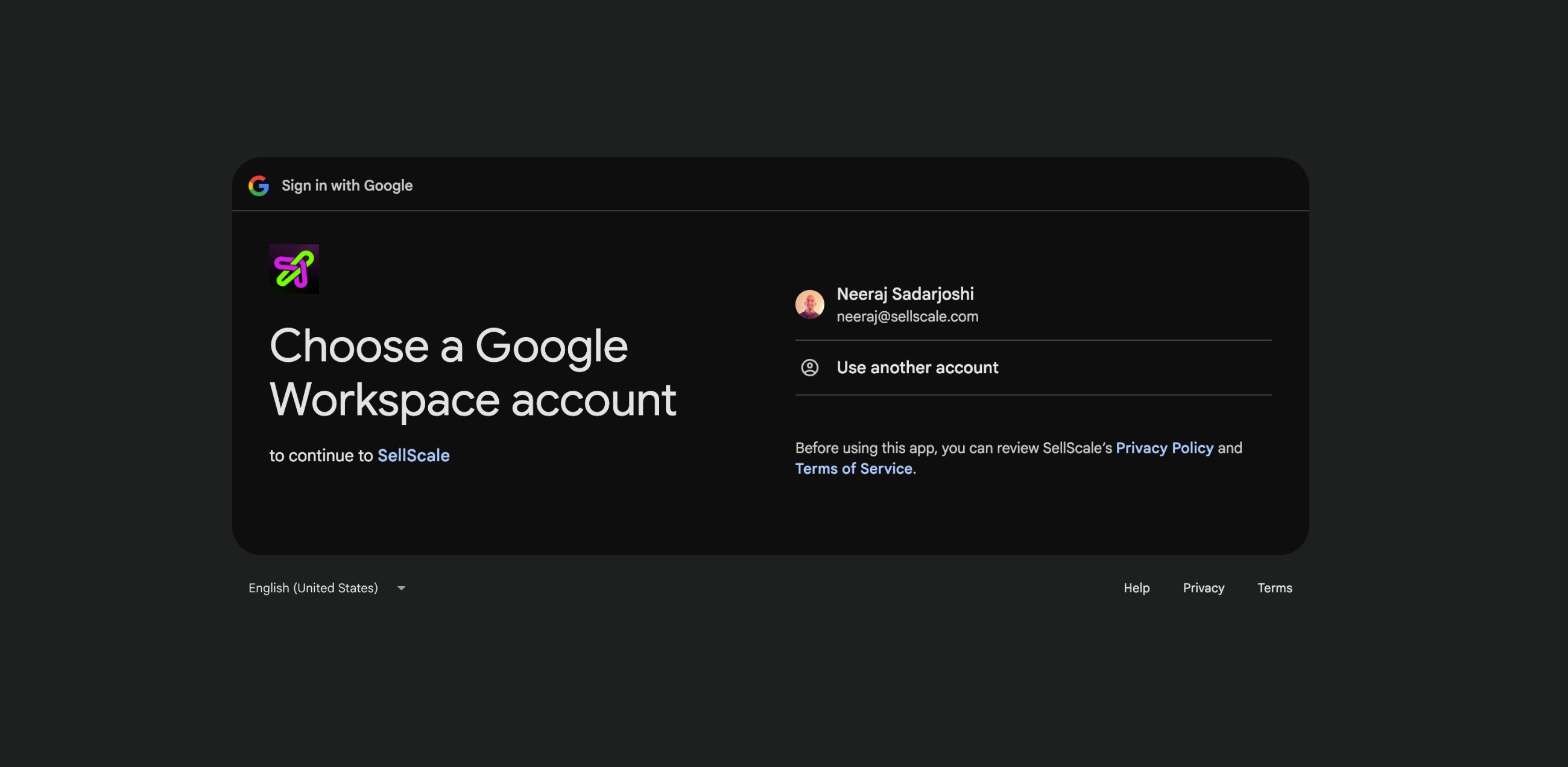
  <Step title="Choose your account">
    Select your **Google Workspace account**.
    <Frame>
      <img src="https://mintcdn.com/selix/DVkCPfkWB1Ia9SpW/images/image-12.png?fit=max&auto=format&n=DVkCPfkWB1Ia9SpW&q=85&s=f7697420ed297044934ffcd7097e793f" alt="Choose a Google Workspace account screen" width="2600" height="1272" data-path="images/image-12.png" />
    </Frame>
  </Step>

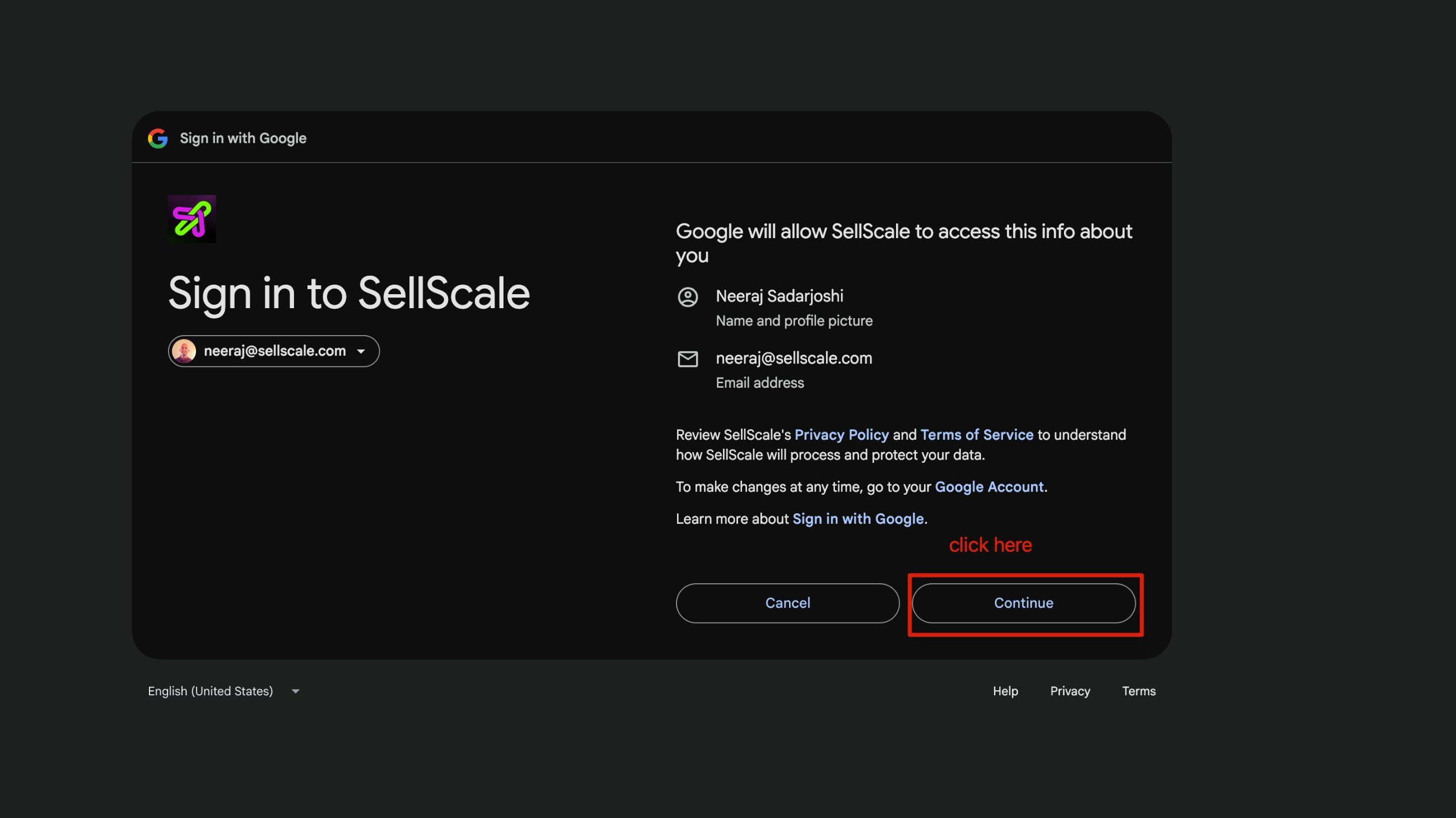
  <Step title="Continue">
    On the **Sign in to SellScale** screen, click **Continue**.
    <Frame>
      <img src="https://mintcdn.com/selix/DVkCPfkWB1Ia9SpW/images/image-13.png?fit=max&auto=format&n=DVkCPfkWB1Ia9SpW&q=85&s=116abc1a03ee5adcd7d04fc171047da9" alt="Sign in to SellScale screen with the Continue button" width="2600" height="1460" data-path="images/image-13.png" />
    </Frame>
  </Step>

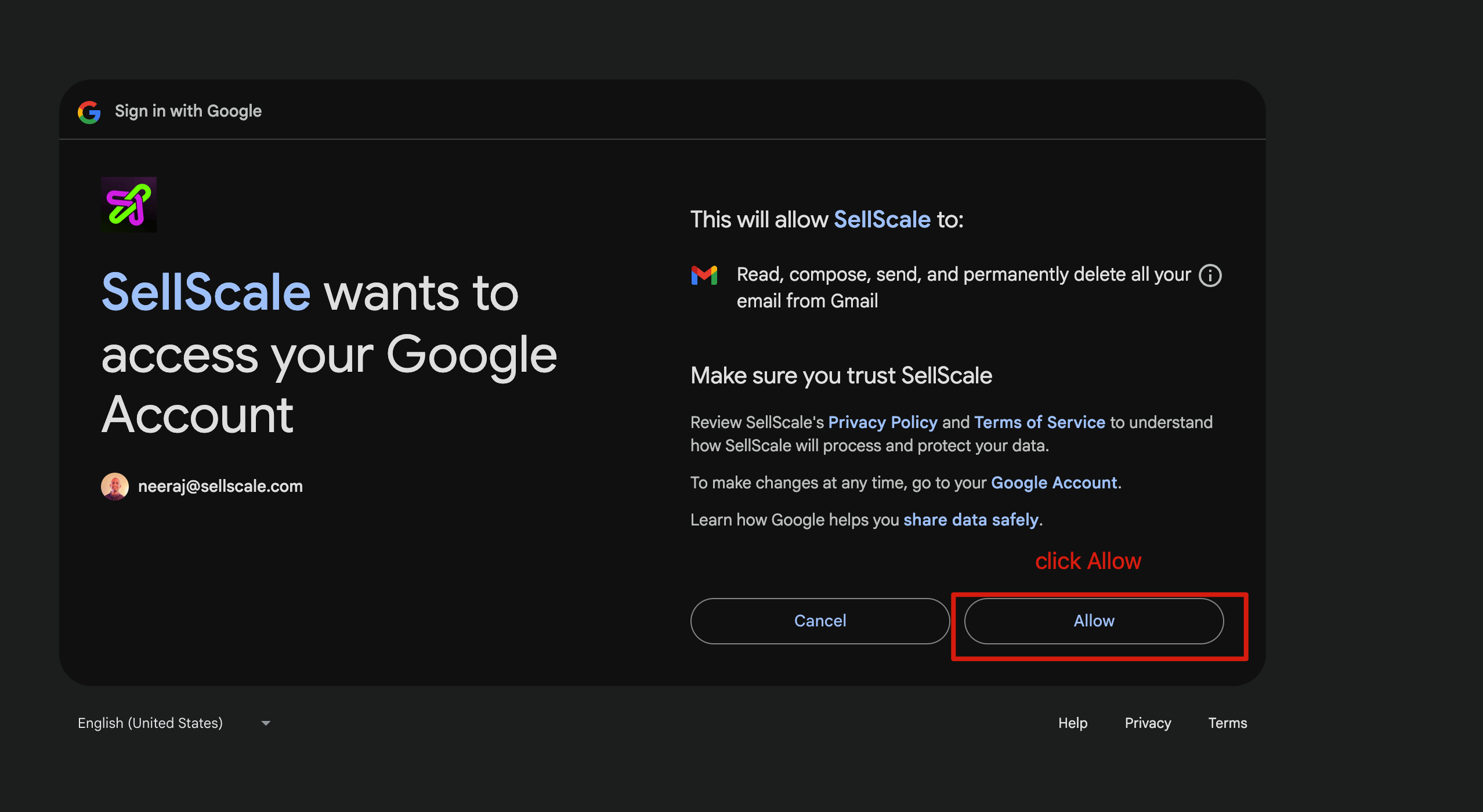
  <Step title="Allow access">
    On the **SellScale wants to access your Google Account** screen, review the permissions and click **Allow**.
    <Frame>
      <img src="https://mintcdn.com/selix/DVkCPfkWB1Ia9SpW/images/image-14.png?fit=max&auto=format&n=DVkCPfkWB1Ia9SpW&q=85&s=ced47d6c2970d641fae0769d206d950c" alt="SellScale requesting access to your Google Account with the Allow button" width="2556" height="1400" data-path="images/image-14.png" />
    </Frame>
  </Step>

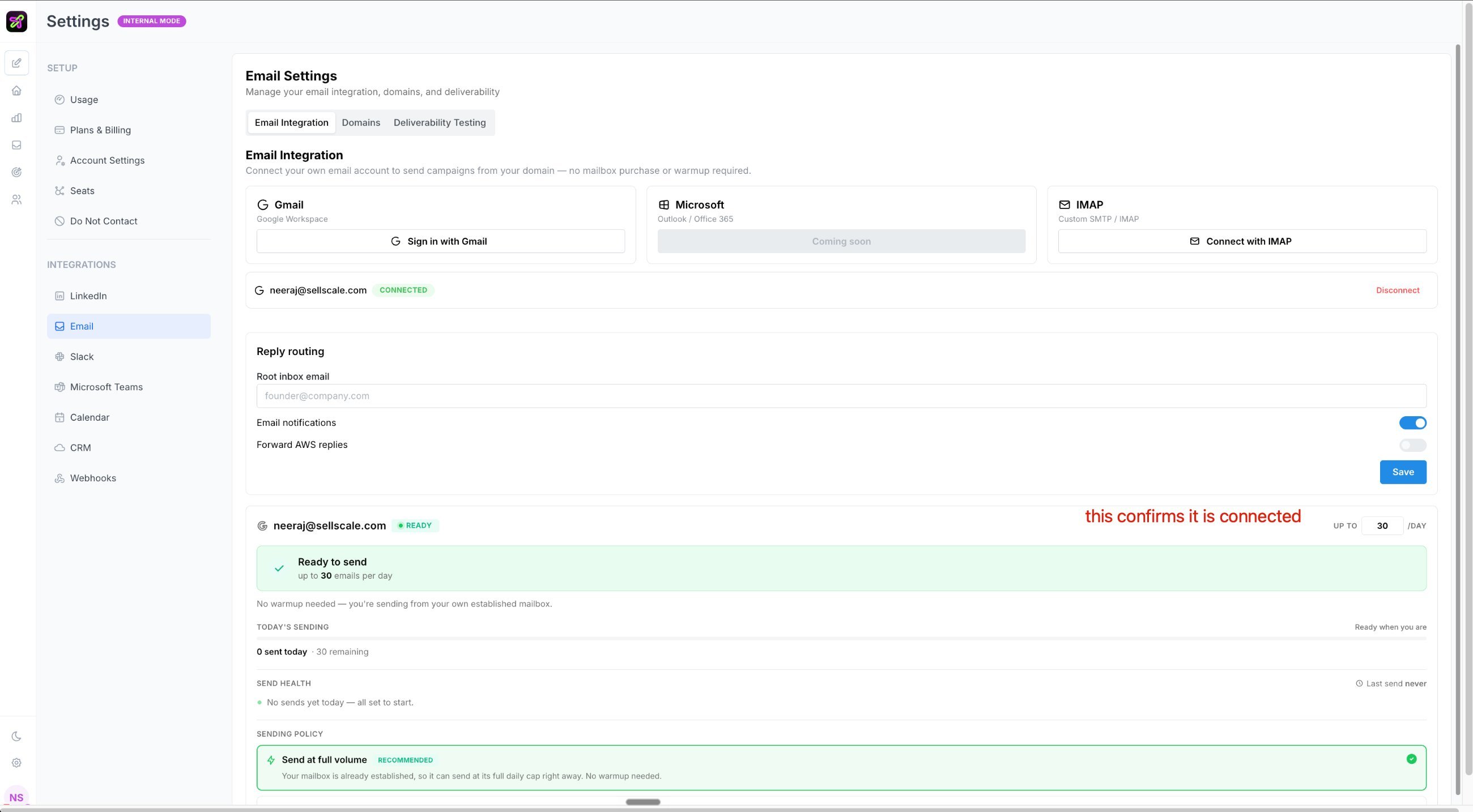
  <Step title="Confirm it's connected">
    You'll be returned to Selix. Your account now shows **Connected** and **Ready to send** — you're all set.
    <Frame>
      <img src="https://mintcdn.com/selix/DVkCPfkWB1Ia9SpW/images/image-15.png?fit=max&auto=format&n=DVkCPfkWB1Ia9SpW&q=85&s=5733eab5f39420a0ed1f4db97d886d0e" alt="Email settings showing the Gmail account connected and ready to send" width="2600" height="1434" data-path="images/image-15.png" />
    </Frame>
  </Step>
</Steps>
