> ## Documentation Index
> Fetch the complete documentation index at: https://docs.selix.ai/llms.txt
> Use this file to discover all available pages before exploring further.
# Connect Calendar
> Add your booking link so prospects can schedule time with you directly.
Add your booking link so interested prospects can schedule time with you directly. Selix drops it into your outreach, so when someone's ready to talk they can grab a slot — no back-and-forth.
In Selix, go to **Settings → Calendar** ([app.sellscale.com/settings/scheduling](https://app.sellscale.com/settings/scheduling)).
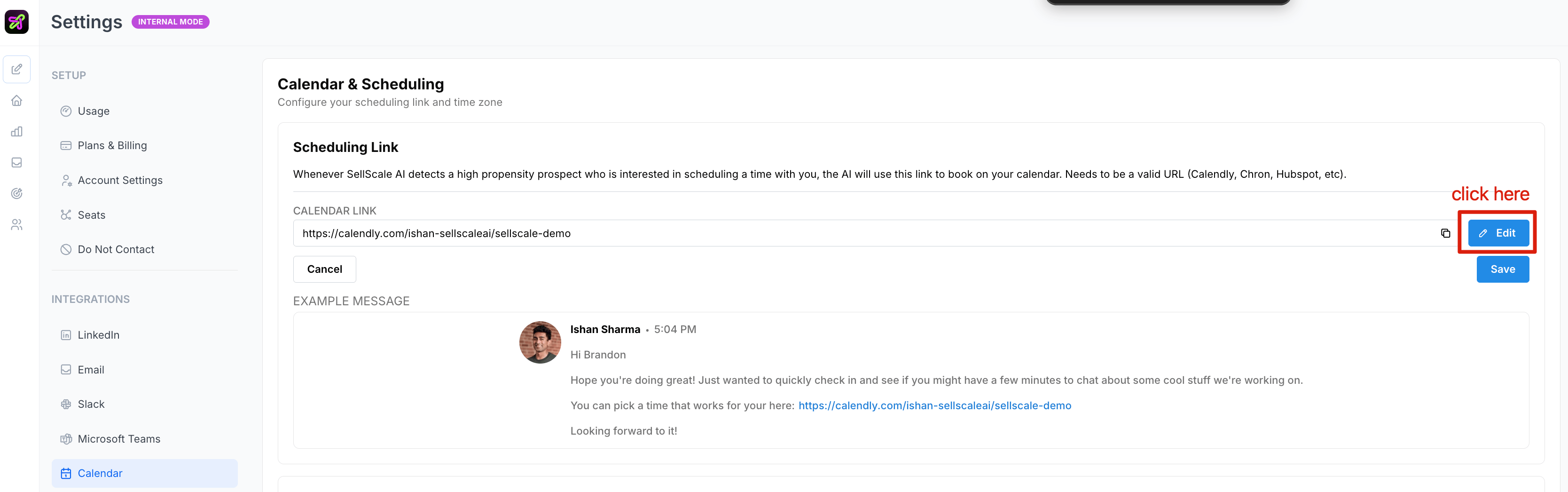 Paste your scheduling link — for example your Calendly or other booking URL. This is the link prospects will use to book time with you.
Save your changes. Selix will now include your booking link in campaigns where it's relevant.
Use a dedicated booking link with buffer times and a clear meeting length so demos land on your calendar cleanly.
Paste your scheduling link — for example your Calendly or other booking URL. This is the link prospects will use to book time with you.
Save your changes. Selix will now include your booking link in campaigns where it's relevant.
Use a dedicated booking link with buffer times and a clear meeting length so demos land on your calendar cleanly.